Scan and Dine - User Guide

Introduction

Welcome to Scan and Dine — we’re excited to have you with us!

This user guide shows you how to easily create your QR code-based online menu and make it available to your customers. It will help you manage your menu by providing information on creating, editing and rearranging menu items and categories, as well as enabling available features that will make your menu stand out.

Let’s get started!

Selecting a menu template

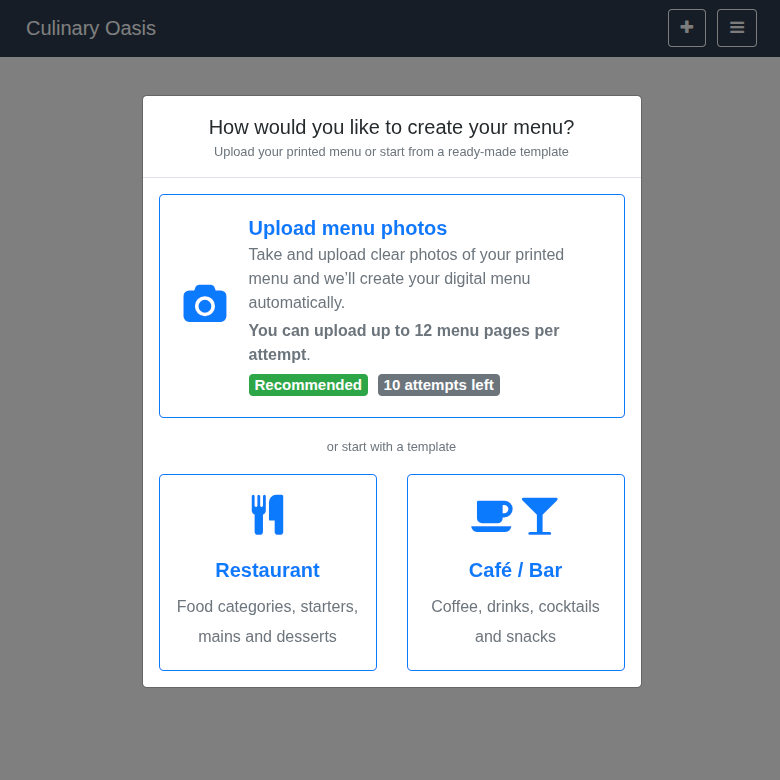
The first time you sign in you will be greeted by the Start with a menu template window.

‘Start with a menu template’ screen

This is just a quick way to get you started — you will be able to create any type of menu, once you get the hang of it. These menu templates show you what’s possible and can provide inspiration, room for experimentation, and a starting point to create your own customized menu.

The available menu templates are:

Name Description
Restaurant Provides a menu outline geared towards dining venues. For example, this demo menu sets you up with categories such as Appetizers, Salads, Main Courses, Wines, Desserts and populates them with suitable demo menu items.
Cafe / Bar Provides a menu outline geared towards coffee shops and bars. For example, this demo menu contains categories such as Coffee, Snacks, Beers, Drinks, Cocktails and populates them with suitable demo menu items.

After selecting a template, you’ll be able to explore the menu items and categories, along with all other features and options available to you on the Scan and Dine platform.

Exploring the menu

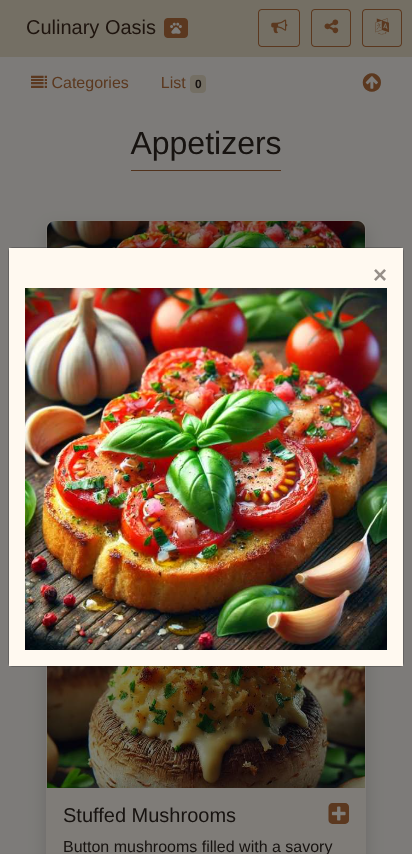
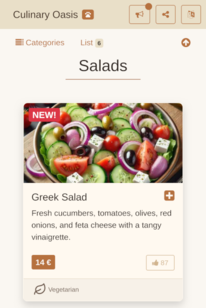
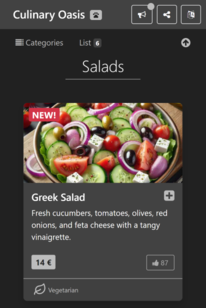
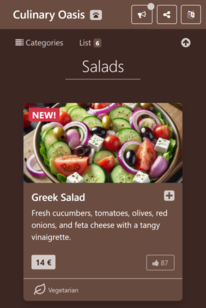
Before we get down into the details of creating your own menu, let’s actually see what a Scan and Dine menu looks like. The below example shows what a customer will see on their smartphone when scanning the QR code:
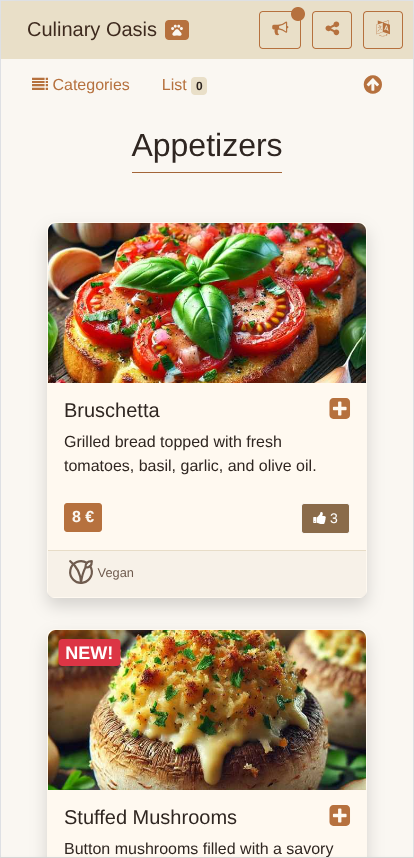
Customer menu view

Quite fancy, isn’t it?

You’ll start creating such eye-catchy menus in a moment.

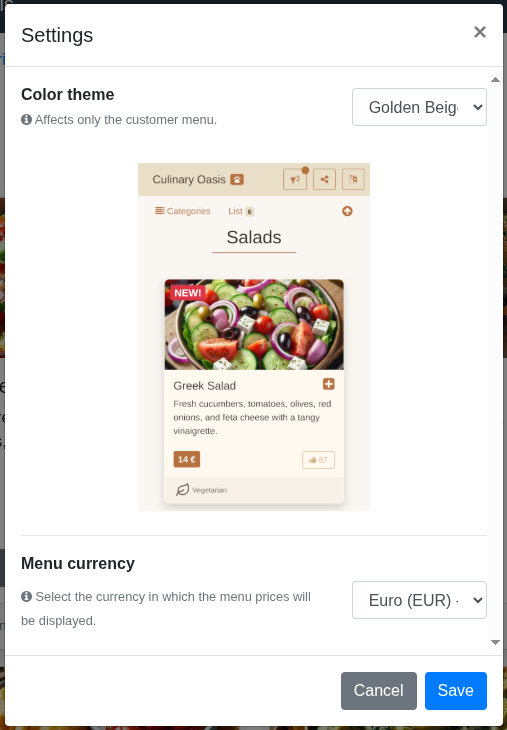
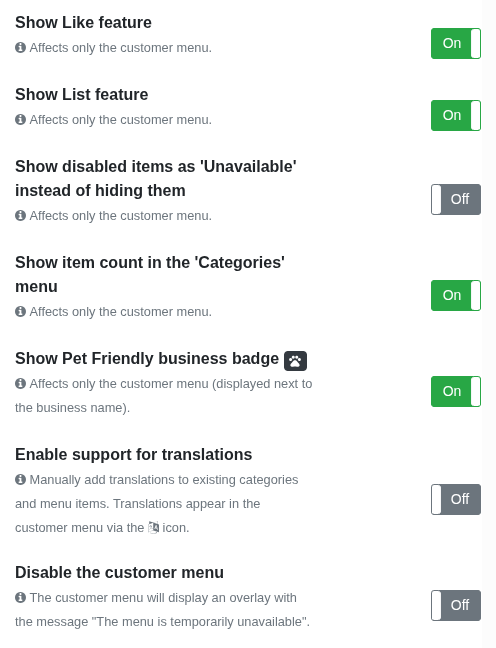
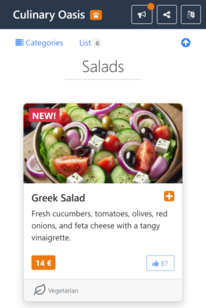
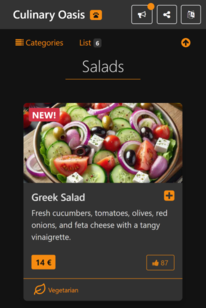
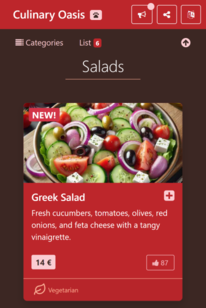
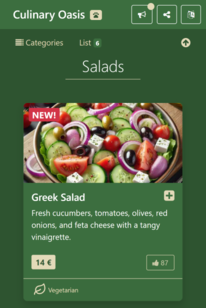
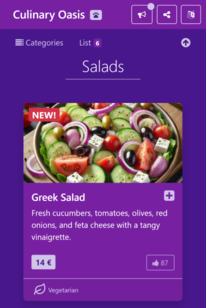
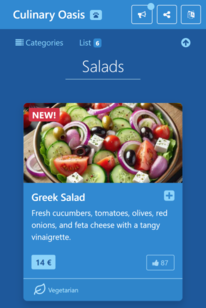
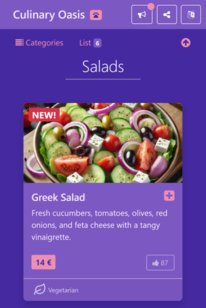
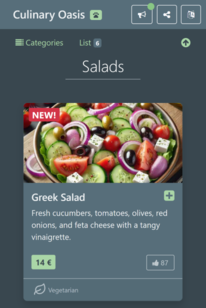
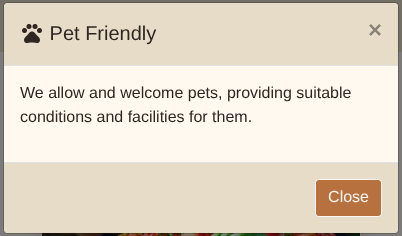
The above menu example is what we call the customer menu view. It’s a view that you set up for your customers, choosing what menu items to show, in what color theme, and with what extra options enabled or disabled (for example, Pet friendly badge, labels and allergens indicators, social media channels etc.).

We also have the owner menu view, in which you’ll spend your time setting up and customizing your menu. As an owner, you have access to all available features and options which enable you to define exactly how your menu will be displayed to your customers, including what they can do with it.

Here’s the above menu again — which, by the way, is using the Restaurant template — viewed from the owner’s perspective (that’s you!):
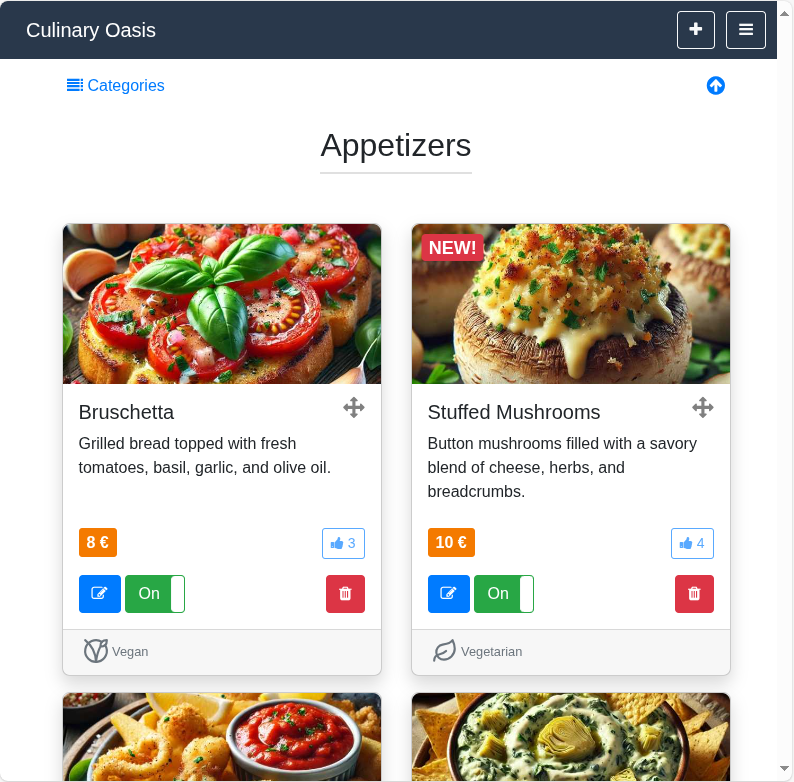
Owner menu view

Note that we’re using a computer screen instead of a smartphone to view this menu, that’s why things are spread out a bit, giving more room for managing them. You can easily manage your menu from your smartphone or tablet, too. We just wanted to show that your menu is accessible by any device that has an internet connection.

Just from this view, you already have a good idea how your menu looks like and you can clearly see the basic similarity with the customer menu view. Impressive, right? But things will get even more interesting… so let’s continue.

Menus are separated into three main areas:

  1. Toolbars
  2. Menu category titles
  3. Menu item cards

We’ll go into more details concerning each area in the following sections. To keep things simple, we’ll be covering things from the owner’s perspective, so the screenshots will be from the owner menu view.


💡 Don’t fret, though. The customer menu view will be covered later on in this user guide.


Toolbars

Your menu features two toolbars. The topmost toolbar — with the dark background — shows your business name (left-hand side) and two action buttons, the Add item ‘Add item’ button and Options & settings ‘Options & settings’ button buttons (right-hand side).

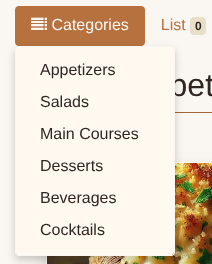
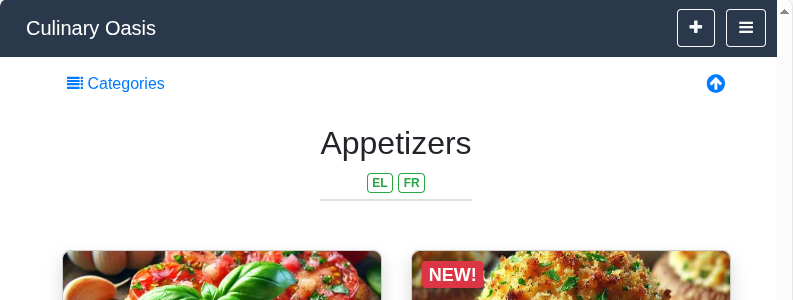
The second, less discrete toolbar, is just below the first one and contains two active spots: the Categories drop-down menu (left-hand side) and the Go to top arrow (right-hand side).

Here’s how they look:

Toolbars - owner’s view

Further down in this user guide you’ll find more information regarding the action buttons and the active spots of the toolbars.

Creating & customizing the menu

With a menu template in place (see Selecting your menu template) you’re now ready to start adapting it to your needs. The first thing to do is make sure your menu categories are set up properly so you can start populating them with menu items. Let’s start with that then.

Managing menu categories

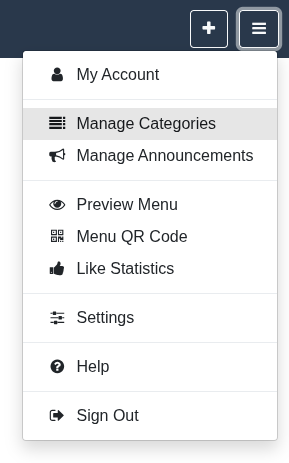
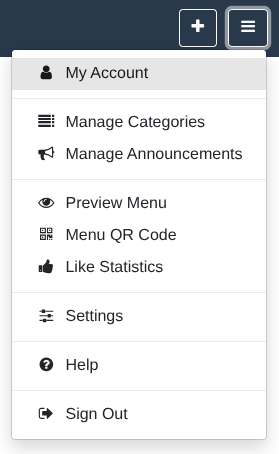
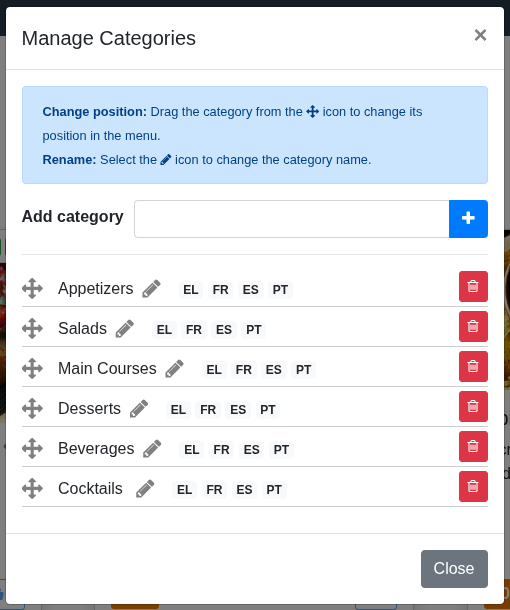
To create or make any changes to your menu categories, you’ll need to open the Manage Categories window by selecting the Options & settings button ‘Options & settings’ button (at the top right) and then the Manage Categories menu entry.

‘Options & settings’ menu - Manage Categories

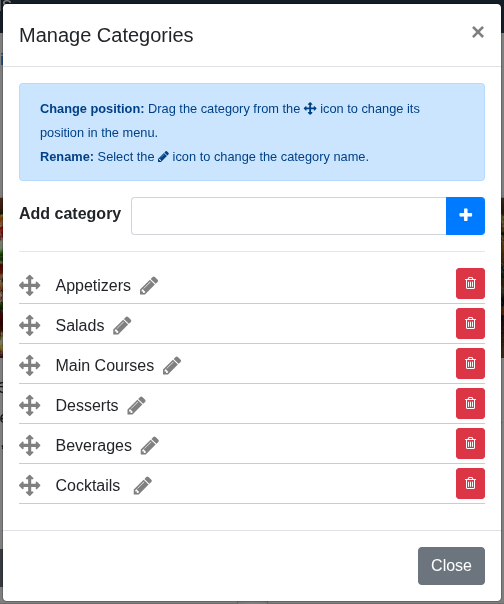
This will bring up the following window:

‘Manage Categories’ window

You can now add or customize your menu categories in the following ways:

Action Description
Add a category Create a new category by inserting its name and selecting the blue and white plus icon. This will make it appear in the category list (at the bottom).
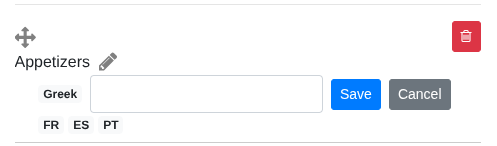
Rename a category Select the pencil icon next to a category’s name to change its name.
Change a category’s position Drag the category from the cross icon (located on the left of a category’s name) to change its position in the menu.
Delete a category Select on the red trash can icon to delete a category.
⚠️ Warning! This action will also delete all menu items that belong to the category.

Categories drop-down menu

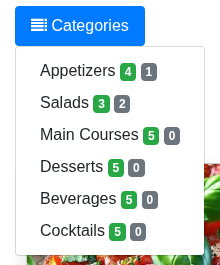
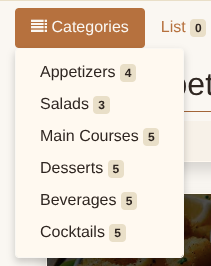
Note that any changes you make in this window will be reflected in the Categories drop-down menu:

‘Categories’ drop-down menu

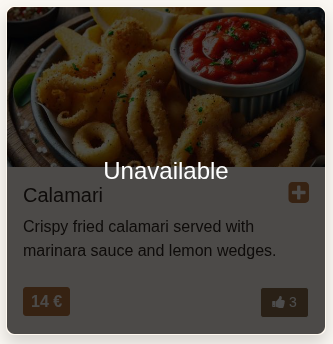
You might be wondering what those green and gray number badges are doing there, next to the category names. The green ones show how many activated menu items you have in a category, while the gray ones indicate the deactivated menu items. Activated menu items mean that they are displayed in the customer menu, while deactivated menu items are not (unless your enable the option Show disabled items as ‘Unavailable’ instead of hiding them from the Settings menu — check here).

To find out how to activate and deactivate menu items and in which situations this makes sense to do so, check here.

With your categories set up, let’s start adding some items to your menu.

Adding menu items

You can start populating your menu with your own items by selecting the Add item button ‘Add item’ button (the big plus sign at the top right, next to the Options & settings button ‘Options & settings’ button).

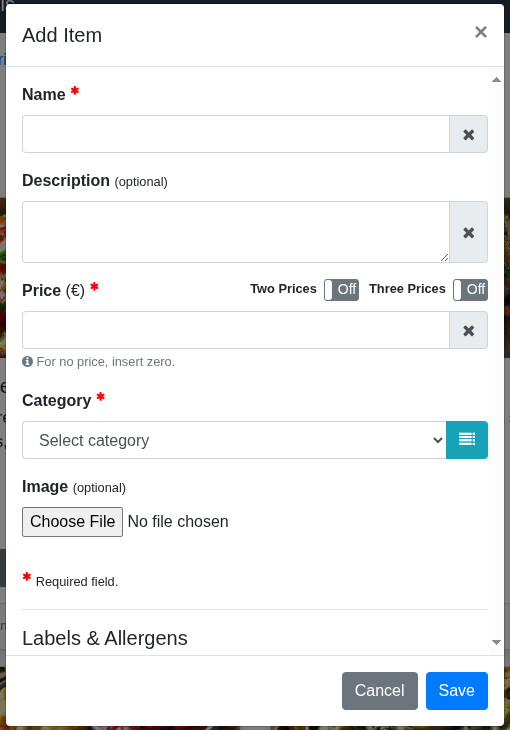
Once selected, you’ll be presented with the Add item window. It contains required and optional fields which allow you to properly present your menu items to your customers. Let’s go over its main sections.

Let’s start with the first part of the Add item window.

‘Add item’ window - Part 1

Here’s a breakdown of each field seen in this first part of the window:

Field Description Required
Name The name of your menu item. Keep it short and to the point. Yes
Description The description of your menu item. Add meaningful information in a promotional tone. No
Price The price of your menu item. You can also set two or even three prices by enabling the respective toggles. Only one set of prices can be active at any time. For no price, insert a zero value. Yes
Category Choose the category in which the menu item will belong to. If the category doesn’t exist, you can quickly create it by selecting the Manage Categories button next to the field. Yes
Image Select an image for your menu item. Images catch customer attention and make your menu stand out, so we strongly recommend adding one. No

Setting two prices

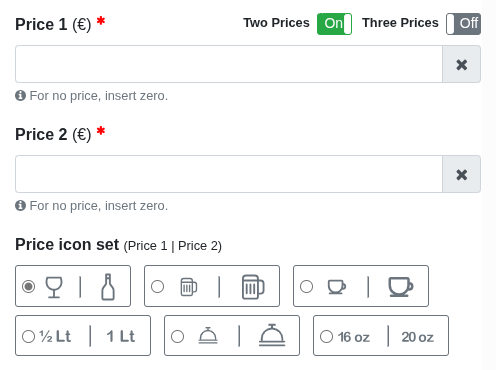
Let’s continue with the next part of the Add item window, and see how it looks like setting up a menu item with two prices.

‘Add item’ window with two prices

As we can see, the Two Prices toggle is enabled, which activates some extra fields:

Field Description Required
Price 2 The second price of your menu item. Yes
Price icon set The two icons the customer will see next to each price. While not a required field, it has a preselected icon set, so make sure you choose the right icon set depending on your needs. No

Setting three prices

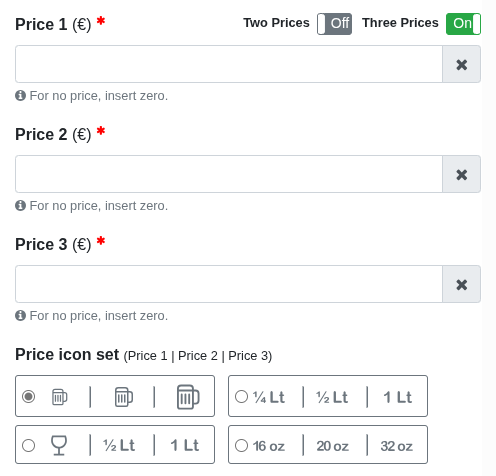
Now let’s see what it looks like setting up a menu item with three prices.

‘Add item’ window with three prices

In this case, the Three Prices toggle is enabled, which activates some extra fields, too:

Field Description Required
Price 3 The third price of your menu item. Yes
Price icon set The three icons the customer will see next to each price. While not a required field, it has a preselected icon set, so make sure you choose the right icon set depending on your needs. No

Adding an image

While images are optional, it’s a good practice to include them if possible. Images make your menu items — and your menu as a whole — stand out. They catch your customers’ attention and provide them with a visual overview of how your menu items look like.

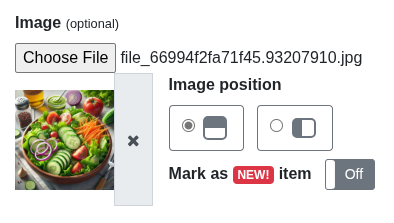
Here’s what the image field looks like, after you’ve selected an image:

‘Add item’ window’s ‘Image’ field

As we can see, the following extra options are enabled when an image is selected.

Option Description
Image position Defines how the image will be shown in the menu item card. The available positions are on the top or on the left.
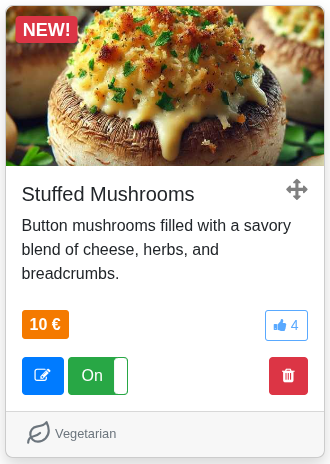
Mark as NEW! item Adds a red badge with the text NEW! in the top left corner of the image. This allows you to highlight any new menu items.

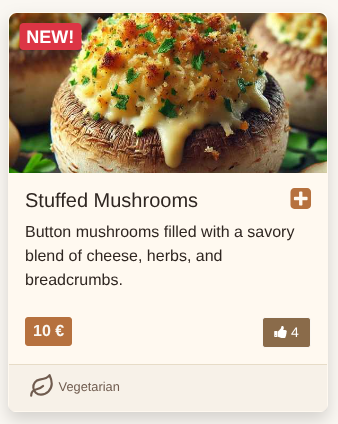
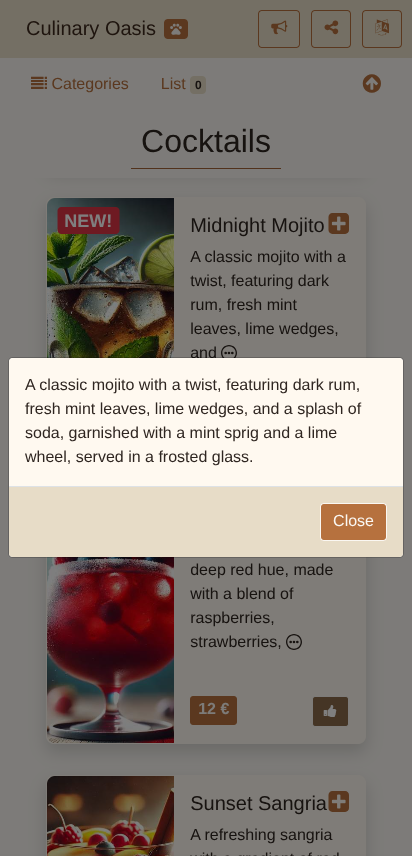
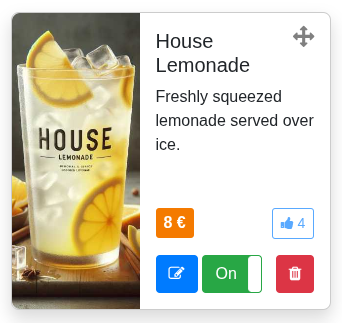
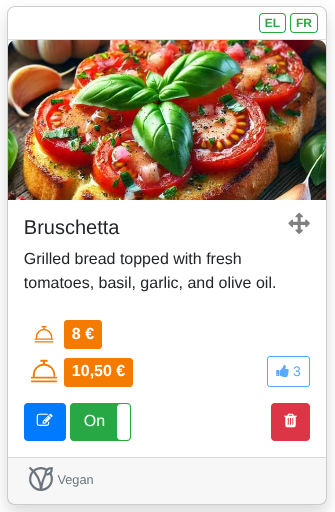
We’ve already showed a menu item card with the image at the top (see here).

Here’s one with the image on the left:

Menu item card with image on the left


💡 Don’t have professional photos of your menu items? No worries. We’ve created the Scan and Dine platform with you — the business owner — in mind. We know about the many responsibilities you have to deal with, so we’ve simplified as much as possible the creation of your menu.

You can easily take your own photos of your menu items with either your smartphone or digital camera. Just point and shoot, then add the images to your menu items. It’s that simple!


Labels & Allergens

In some cases, you may wish to add some special indicators to your menu items. For example, you might have spicy menu items or vegetarian/vegan ones that you’d like your customers to know about. Or, you’d like to highlight that some of your menu items are suitable for allergic persons etc.

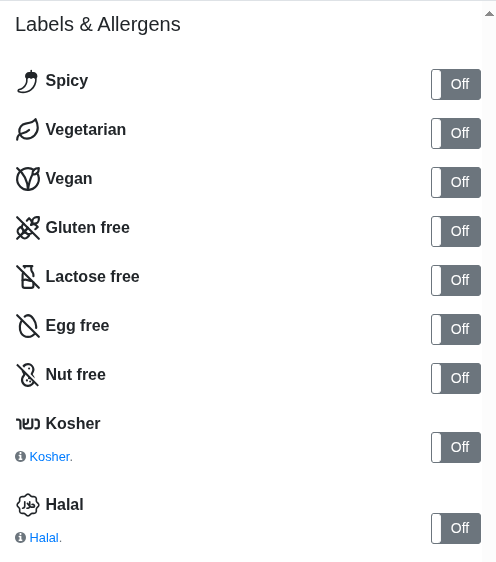
This is where the respective section of the Add item window — titled Labels & Allergens — comes into play, and which looks like this:

‘Add item’ window’s ‘Labels & Allergens’ options

Here’s a breakdown of each label and allergen:

Label / Allergen Description
Spicy Contains chili/heat. Intensity may range from mild to hot.
Vegetarian No meat, poultry, fish, or seafood. May include dairy and/or eggs.
Vegan No animal-derived ingredients (no meat, fish, dairy, eggs, honey, or gelatin).
Gluten free Made without wheat, barley, or rye. Prepared to minimize gluten cross-contact.
Lactose free Contains no lactose (milk sugar). May still include dairy if lactose-free products are used.
Egg free Contains no eggs or egg-derived ingredients.
Nut free Free from peanuts and tree nuts (almonds, walnuts, etc.).
Kosher Ingredients and preparation follow Jewish dietary laws.
Halal Ingredients and preparation follow Islamic dietary guidelines (no pork/alcohol; meat from halal sources).

When enabled, these visual indicators appear at the bottom of the menu item card. You can enable as many as you wish, but we recommend to use them where — and if — needed.

We already showed a menu item card that has a label enabled (see here).

Editing menu items

Now that you have menu items available, you can edit them whenever you want. For example, you might wish to update a price, add a more catchy description, upload a better image, or change the item’s category etc.

To do so, select the Edit item button (the blue icon with the pencil in the box) ‘Edit item’ button which is on the menu item card, below the price tag.
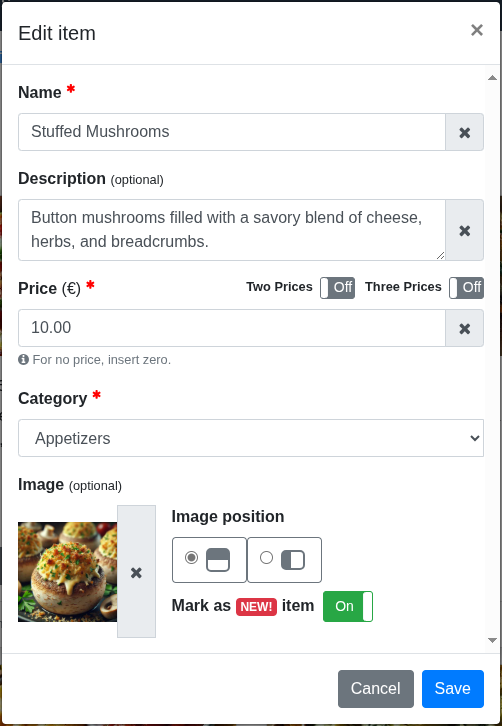
This action will open the Edit item window:

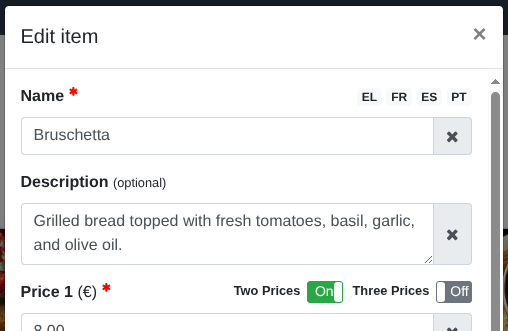
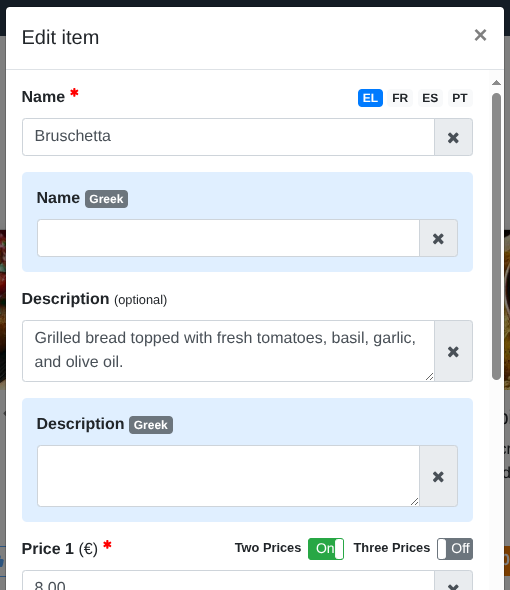
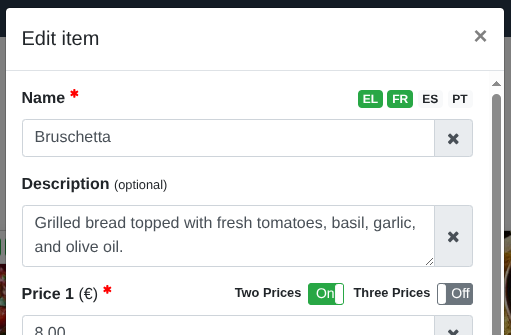
‘Edit item’ window

As you can see, this window is identical to the Add item window, but has the fields already pre-populated since it’s an existing menu item. To avoid repeating ourselves here, you can check section Adding menu items on how to deal with this window’s fields.

Activating / deactivating menu items

In some cases, you may need to hide — or show as unavailable — a menu item. This can be done by selecting the Activate / Deactivate toggle ‘Activate / Deactivate’ toggle which is next to the Edit item button.

Deleting menu items

To remove a menu item, simply select the Delete item button (the red trash can icon) ‘Delete item’ button which you can find in every menu item card. Once selected, you’ll be presented with the Delete Confirmation window.
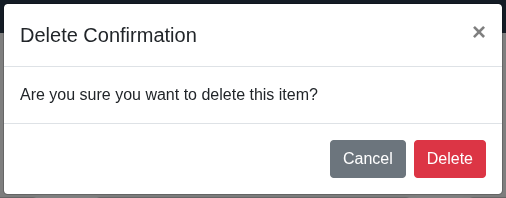
‘Delete Confirmation’ window

By selecting the red Delete button, you complete the action of removing the specific menu item from your menu. Note that this action cannot be undone.


💡 If you need to delete a lot of menu items at once, then group them under a specific category (using, per item, the button Edit item and then the field Categories) and then delete this category from the Manage Categories window.


Changing a menu item’s position

To rearrange a menu item’s position, for example, to put it before or after any other menu items, you can use the cross icon ‘Change position’ icon which is on the right of the menu item’s name.
You select and hold the cross icon and drag the menu item in the location you wish. You’ll get the hang of it quickly — just experiment a bit and you’ll see how easy and intuitive it really is.

Keep in mind that there are some rules for changing a menu item’s position:
Managing menu announcements

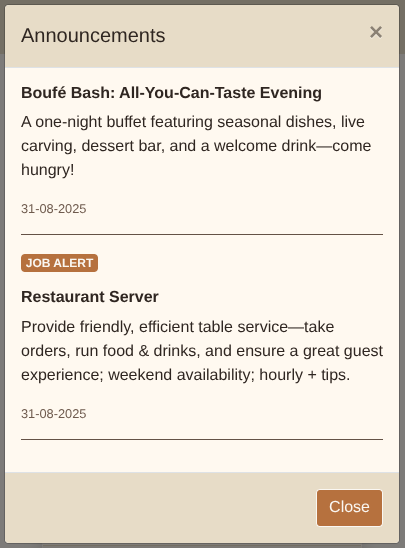
An interesting feature of the Scan and Dine platform is the ability to create your own announcements for display in your menu. This helps you promote events and parties directly through your customer menu, without the need for your customers to reach out to your website or social media channels. What’s more, you can also create special announcements called Job alerts for when you’re looking to find personnel for your business; these announcements feature a badge to distinguish them from the regular ones.

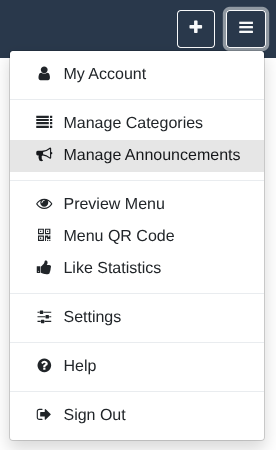
To create or make any changes to your announcements, you’ll need to open the Manage Announcements window by selecting the Options & settings button ‘Options & settings’ button (at the top right) and then the Manage Announcements menu entry.

‘Options & settings’ menu - Manage Announcements

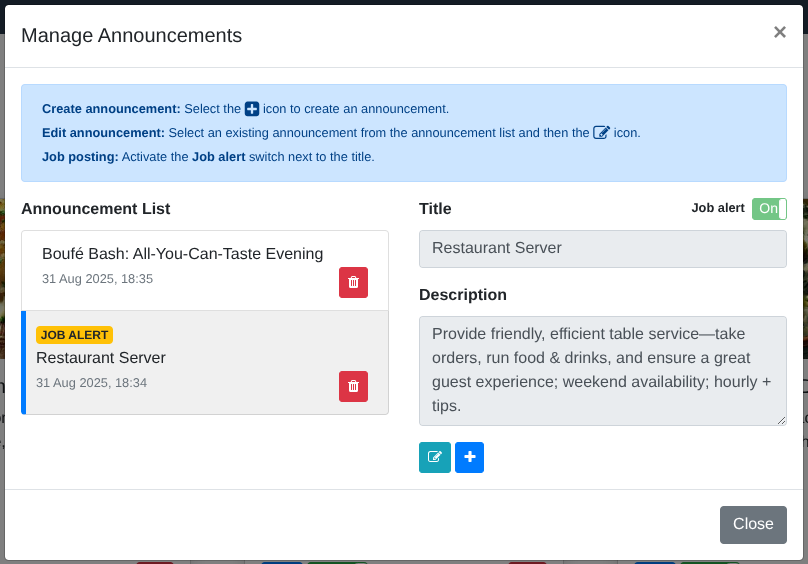
This will bring up the following window:

‘Manage Announcements’ window

You can now add or customize your menu announcements in the following ways:

Action Description
Create an announcement Select the Create announcement button (the blue and white plus icon) to add a new announcement. Insert a title and a description and select the Save button to add it in the Announcement List. If you want this announcement to be about an open position, then enable the Job alert toggle (on the right of the title field).
Edit an announcement Select an existing announcement from the Announcement List and then select the Edit announcement button (the turquoise pencil in a box icon). Change as needed the text in either the title or description fields and select the Save button.
Delete an announcement Select the Delete announcement button (the red trash can icon) which appears next to each announcement entry in the Announcement List. This action will instantly delete your announcement.

When you add an announcement to your menu, a bullhorn button is enabled in the customer menu view (placed on the right-hand side of the toolbar) to indicate its existence. Here’s how it looks like:

Announcements button

Each time you add a new announcement, the bullhorn button will feature a dot in its top right corner, to show that there’s a new announcement available to your customers. This dot will go away after the latest announcement is 2 weeks old.

And here’s what the customer will see when they select the bullhorn button:

Announcements window - customer view

Managing web & social media channels

If you have a website and/or social media channels relevant to your business, then you can showcase and promote them in your Scan and Dine menu. This way, your customers can easily find you and follow/connect, boosting your business’s exposure.

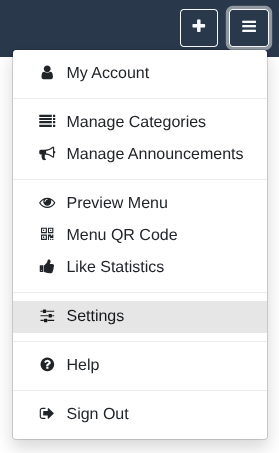
To add your website/social media channels you’ll need to open the Web & social tab from the My Account window. To do so, select the Options & settings button ‘Options & settings’ button (at the top right) and then the My Account menu entry.

‘Options & settings’ menu - My Account

In the My Account window, select the Web & social tab:

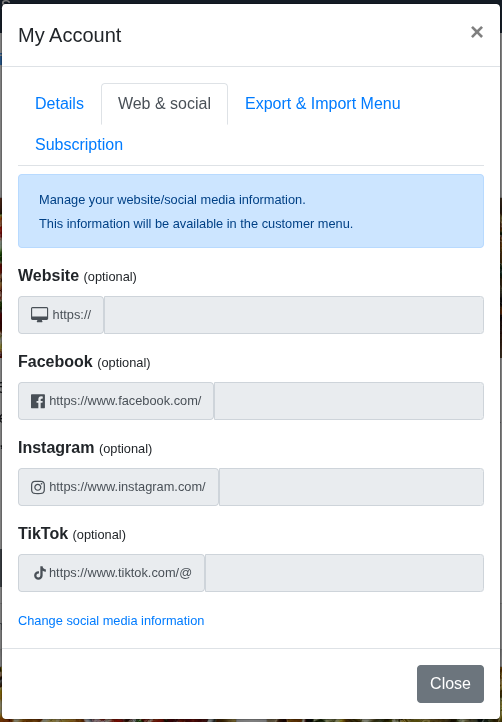
‘My Account’ window - Web & social

The fields are disabled by default. To enable them so you can insert the information, select the Change social media information link which is at the bottom of the window.


💡 Note for social media fields: You only need to add your account handle/user name, as we’ve already added the URL of each respective social media site.


When you add a website and/or social media to your menu, a connect button is enabled in the customer menu view (placed on the right-hand side of the toolbar) to indicate the existence of this information. Here’s how it looks like:

Connect button

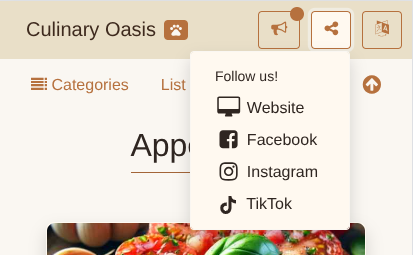
And here’s what the customer will see when they select the connect button:

Connect button - Menu

In the above screenshot, we’ve enabled all available web and social media options, that’s why you see them all displayed. If you only use a selection of them, then only those will be shown.

Preview the menu

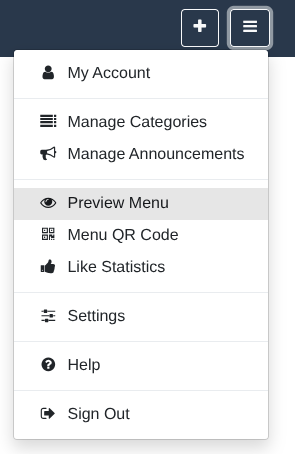
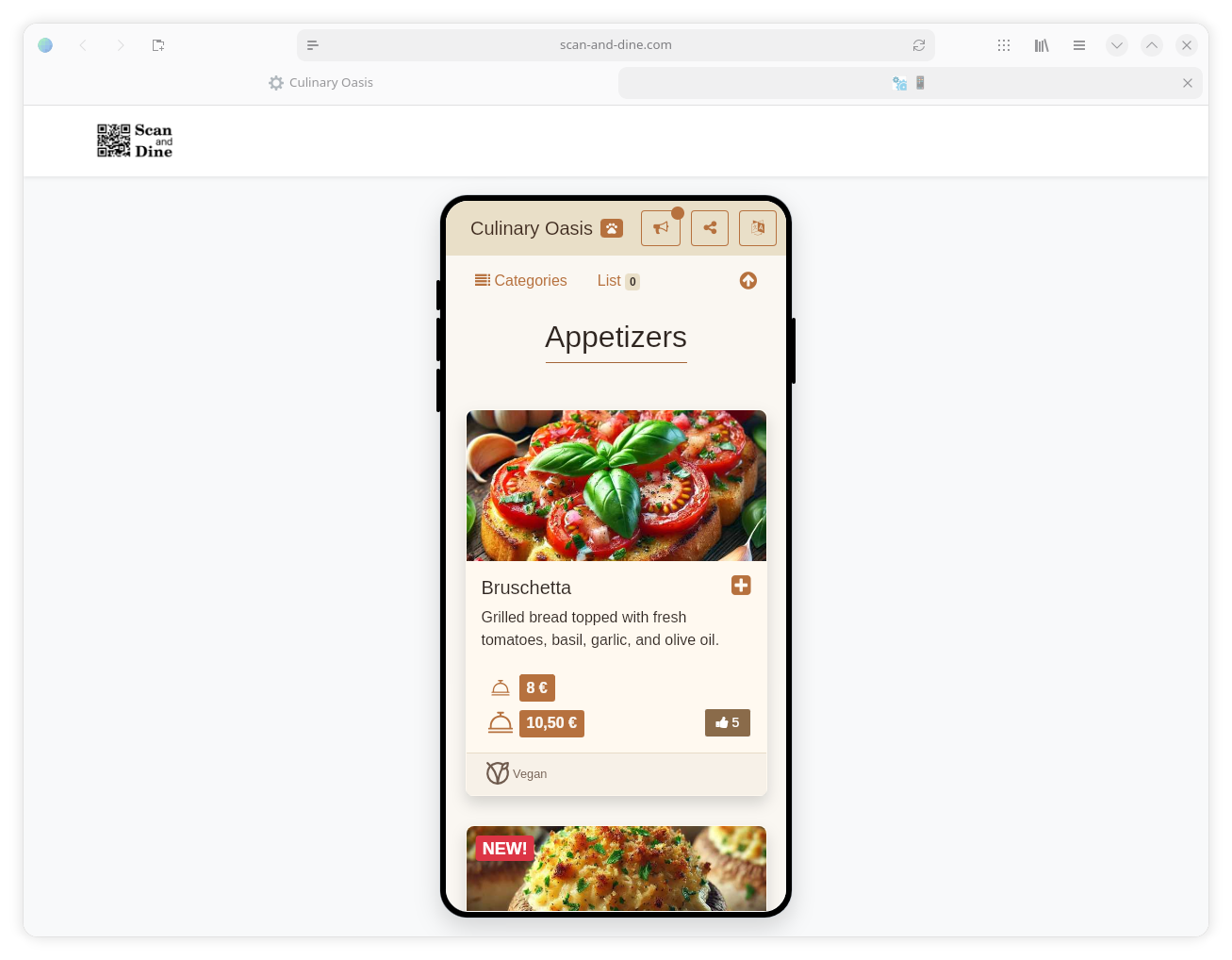
You can preview your menu at any time. And by preview, we mean displaying the menu the way your customers will see it. To do so, select the Options & settings button ‘Options & settings’ button (at the top right) and then select the Preview Menu menu entry.

Preview Menu

This action will open your menu in another web browser tab where you’ll see a smartphone mockup with the customer menu displayed. You can interact with this smartphone mockup to scroll up and down the menu, select categories or icons etc.

Preview Menu - Desktop screen

If you’re managing your menu from your smartphone, then the preview will open in another tab or window on your smartphone, and you’ll experience the full customer menu experience.

Like statistics

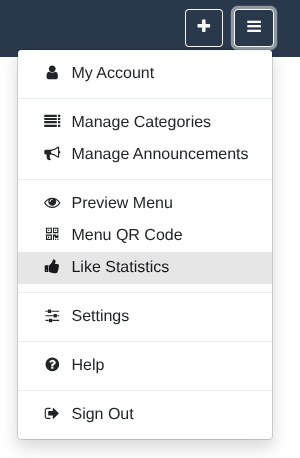
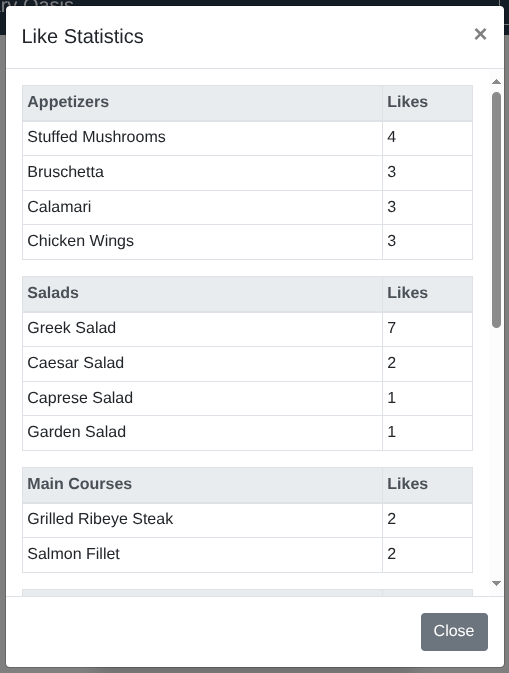
Over time, you’ll see that your menu items are picking up a steady flow of “likes” (assuming you have not disabled this feature; see here for details). You can view the statistics of these “likes” by accessing the Like Statistics window. To do so, select the Options & settings button ‘Options & settings’ button (at the top right) and then select the Like Statistics menu entry.

‘Like Statistics’ menu entry

This will open the respective window. Here’s an example:

‘Like Statistics’ window

The “like” statistics are grouped per menu category, and each menu category contains a breakdown of the number of “likes” per menu item.

Managing your account

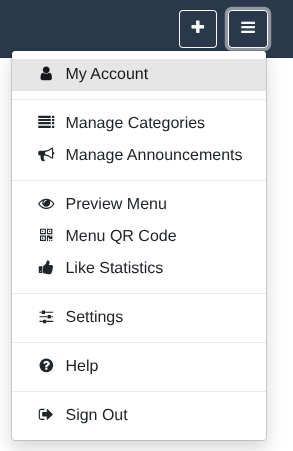
You can manage your Scan and Dine account through the My Account window which you can access by selecting the Options & settings button ‘Options & settings’ button (at the top right) and then the My Account menu entry.

‘My Account’ menu entry

This window is separated into four tabs and we’ll go over each one in the below sections (with the exception of the Web & social tab which is already covered here).

Details tab

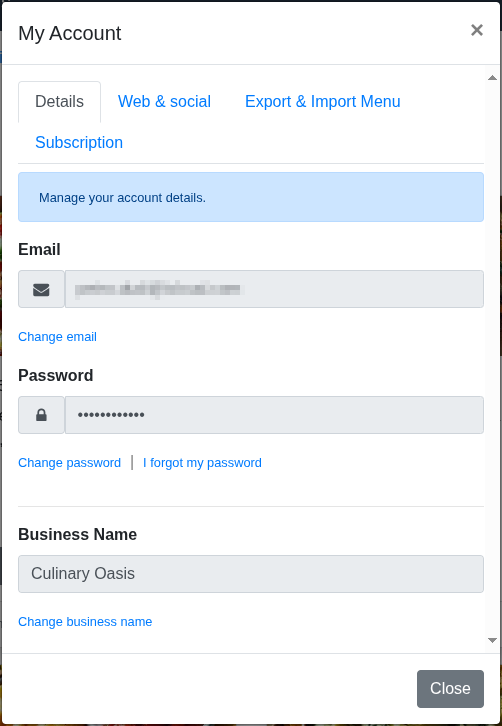
The Details tab allows you to manage your account’s basic information such as email and password, and gives you the option to change the business name you show on the menu.

‘My Account’ window

Changing your email

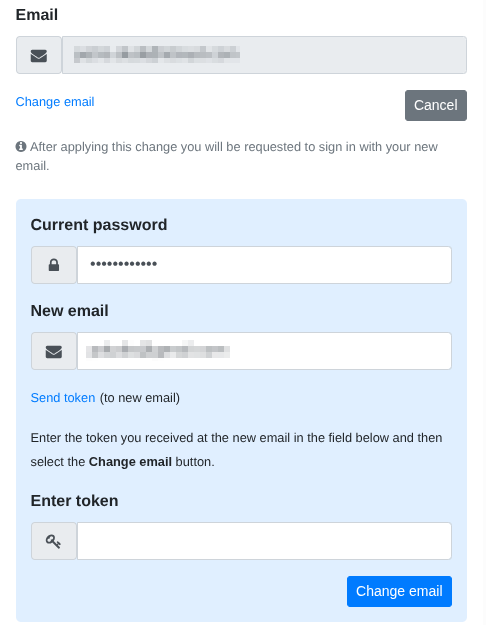
To change your email select the Change email link that is below the Email field. This action will display some extra fields, as shown in this screenshot:

Change email

Here’s a breakdown of what each new field is about:

Field Description
Current password For security reasons, you need to insert your current password.
New email Insert the new email you wish to use — make sure you have access there.
Send token (to new email) Once selected, you will receive an email with a token. Note that this token will be sent to the new email you stated above.
Enter token Insert the token you received at your new email.
Change email Select to apply the change.

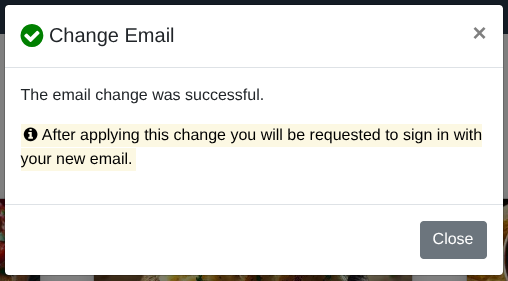
If everything goes as expected you will see the following confirmation window:

Change email - Success

If there is any problem with the process — for example, you inserted wrong information — then you will see the message “The token you entered is incorrect. Please check the relevant email you received with the token and try again.” In this case, try again, making sure you’re inserting correctly the new email and the received token.

Changing your password

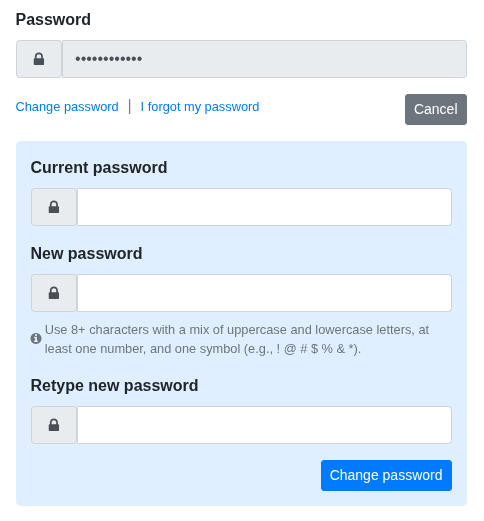
To change your password select the Change password link below the Password field. This action will display some extra fields, as shown in this screenshot:

Change password

Here’s a breakdown of what each new field is about:

Field Description
Current password For security reasons, you need to insert your current password.
New password Insert the new password you wish to use.
Retype new password Insert again your new password for extra verification.
Change password Select to apply the change.

💡 When choosing a password, use 8+ characters with a mix of uppercase and lowercase letters, at least one number, and one symbol (e.g., ! @ # $ % & *).


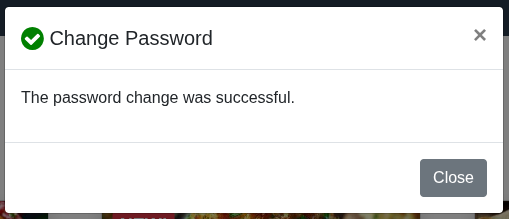
If everything goes as expected you will see the following confirmation window:

Change password - success

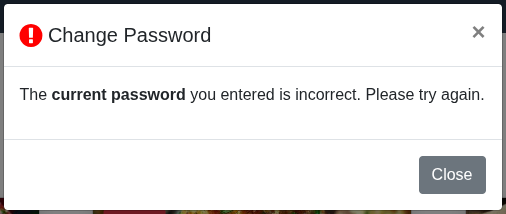
If there is any problem with the process — for example, you inserted wrong information — then you will see the following error window:

Change password - error

Forgot your password?

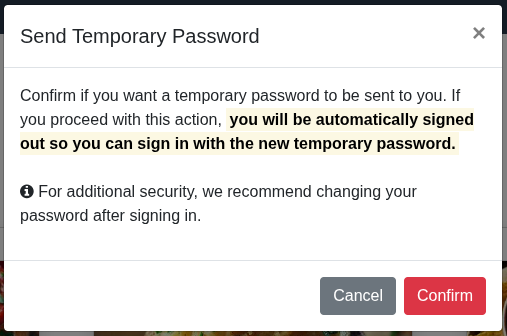
If you forgot your password then select the I forgot my password link below the Passoword field. This action will display the following window:

‘Forgot Password’ window

If you select the Confirm button you will be automatically signed out and a temporary password will be sent to you so you can sign in with it.


💡 For additional security, we recommend changing your password after signing in. See section Changing your password.


Changing your business name

To change your menu’s business name select the Change business name link below the Business Name field. This action will unlock the field, allowing you to insert the new business name you wish to show on your menu.


💡 Note that the business name you use here is only displayed on your Scan and Dine menu. It is independent — and not connected — to the business name you’re using for paying your Scan and Dine subscription.


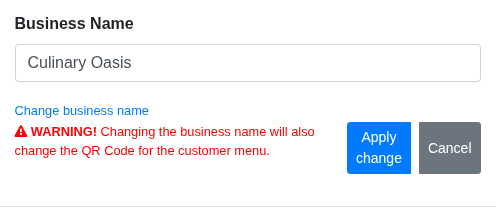
An important warning message is also displayed when you attempt to change your menu’s business name — see red text in below screenshot:

Change business name

The message states: WARNING! Changing the business name will also change the QR Code for the customer menu.

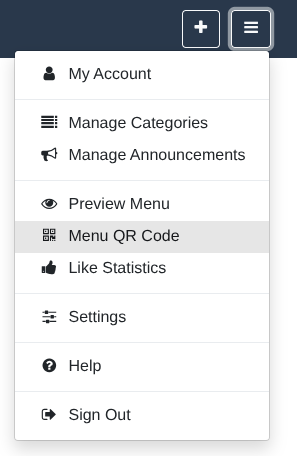
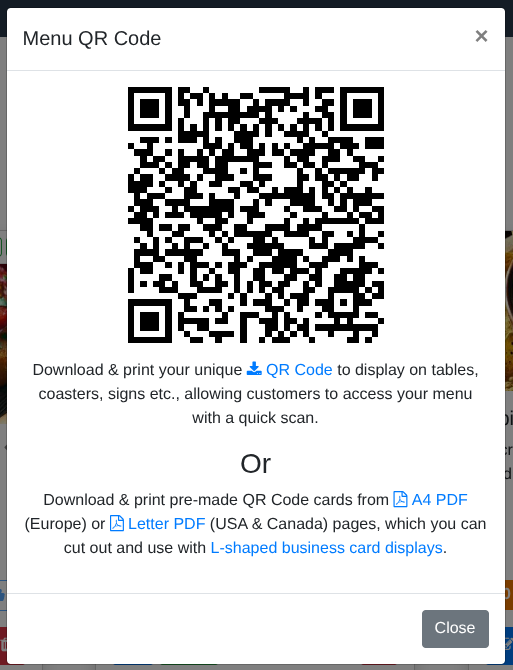
And it’s a very important message — if you proceed with the business name change, a new QR code will be generated for your menu, making obsolete the previous QR code. This means that if you’re already using the old QR code, you’ll need to replace it with the new one (see Menu QR Code on how to obtain the QR code).

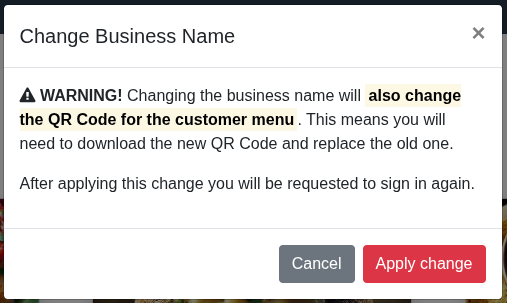
If you select the Apply change button, you’ll be warned one last time with the following window:

Change business name - Confirmation

Once you select this window’s Apply change button you’ll have to sign in again to see the new business name applied, and to obtain the new QR code.

Export & Import Menu tab

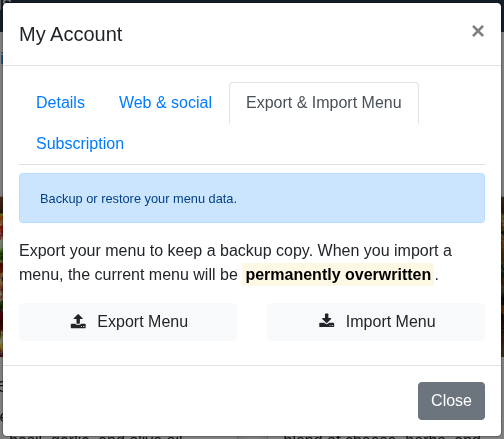
Keeping a backup copy of your menu is always a good practice. To do so, select the Export & Import Menu tab.

Export & Import Menu

Here you have the options to export and import your menu. Below we cover each case.

Exporting your menu

To export your menu, select the Export Menu button. Your web browser will ask you where to save the exported file. If the process is successful, you’ll see the following message:

Export Menu - Success

Importing your menu

To import your menu, select the Import Menu button. This action will open a Files window from which you can select the menu file to import. If the process is successful, you’ll see the following message:

Import Menu - Success

If the import process fails, you’ll see the following message instead:

Import Menu - Error

When experiencing errors during import of your menu, make sure you’re importing the correct file. The file should contain your business name and a date stamp. For example, our demo menu has the business name Culinary Oasis and we exported it on September 25th, 2025. So, the file to import should have a filename like: Culinary_Oasis_2025-09-25_15-08-08.zip. The last group of digits (15-08-08) in the filename is the time stamp — in Greenwich Mean Time (GMT).


⚠️ WARNING! When you import a menu, the current menu will be permanently overwritten.


Subscription tab

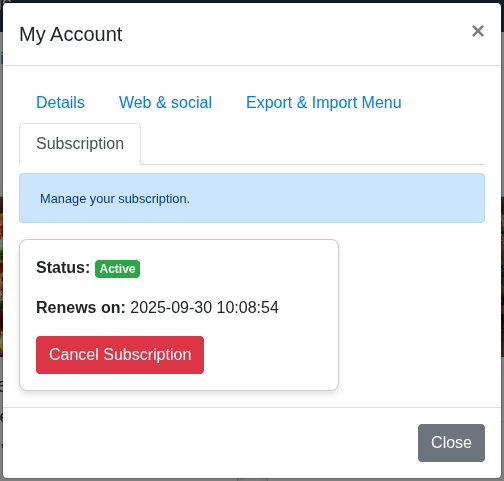
This tab gives you an overview of your Scan and Dine subscription.

Subscription information

The following information is available to you:

Canceling your subscription

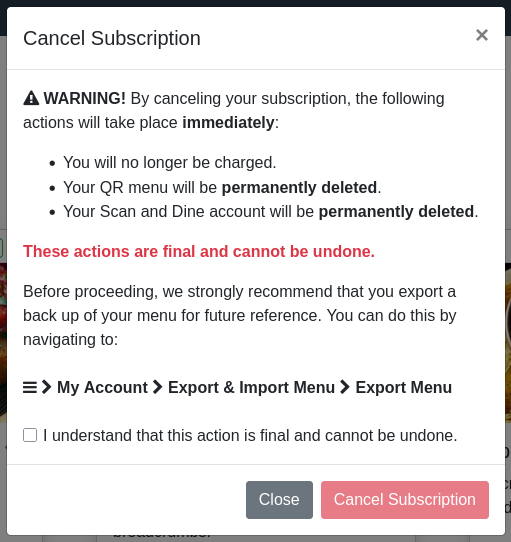
You can cancel your subscription by selecting the Cancel Subscription button. This action will show the final confirmation window to cancel your subscription:

Cancel subscription window

By canceling your subscription, the following actions will take place immediately:

  • You will no longer be charged.
  • Your QR menu will be permanently deleted.
  • Your Scan and Dine account will be permanently deleted.

⚠️ WARNING! These actions are final and cannot be undone.


Before proceeding, we strongly recommend that you export a back up of your menu for future reference. See Exporting your menu on how to do this.

Signing out

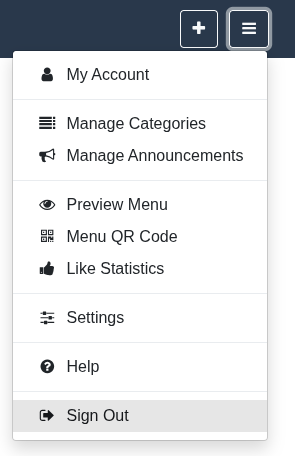
You can sign out of the Scan and Dine platform by selecting the Options & settings button ‘Options & settings’ button (at the top right) and then the Sign Out menu entry.

Sign Out